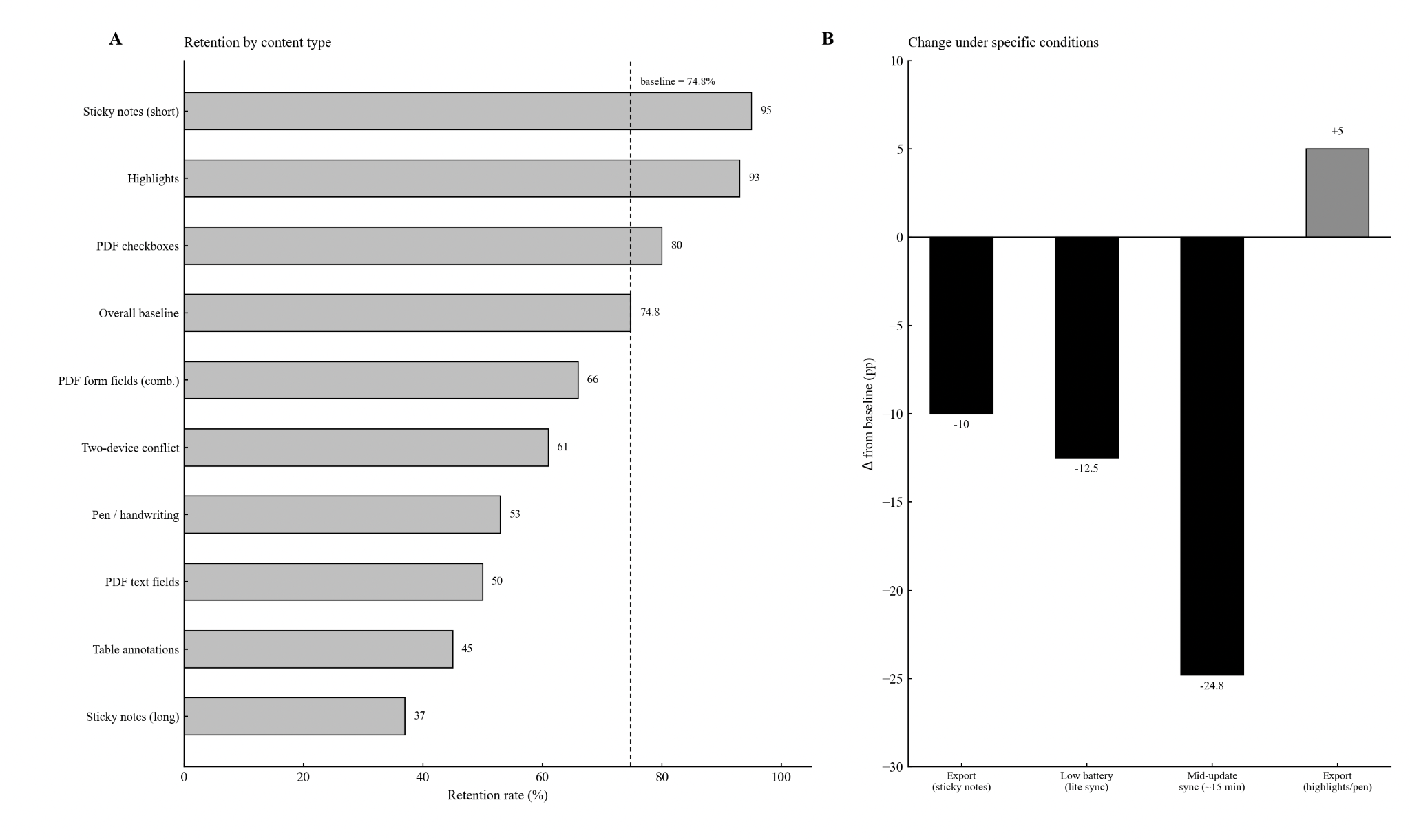
The VellumPad R6's annotation-retention figure is 74.8% after the defined iCloud-sync workflow. That is the headline, but it does not answer the question most people have when they reopen a marked-up reading: is the note I actually need still there? An overall percentage can tell you how many items passed a check. It cannot point to the comment beside tomorrow's assignment and promise that this particular one made it.
Start with what counts as an annotation in the comparison. A highlight, a pen stroke and a text comment do different jobs. For this retention figure, an item passes when its content and intended position survive the workflow and remain available in the destination viewer. If you also need editability or a reply attached to the right parent comment, record those requirements separately. Otherwise, two people can report different retention rates while inspecting the same file.
The arithmetic is simple enough. Take 1,000 eligible items that work in the reference document. If 748 pass the stated check afterward, 748 divided by 1,000 and multiplied by 100 gives 74.8%. The remaining 252 did not pass that check. This worked count explains the percentage; it does not establish how those failures are distributed between handwriting, highlights and comments.
That distribution matters. Imagine a reading covered in short highlights with only a few long comments explaining the argument. An aggregate dominated by highlights could look strong while the comments fail. The reverse could happen in a sketch-heavy file. Before using one percentage to compare two workflows, check that the documents contain similar kinds of work and that the success rule is the same.
There is also a temptation to treat anything missing at the end as something iCloud deleted. That jumps over several steps. The application edits the document, saves a representation of it, transfers or synchronises that representation, and opens it in a destination viewer. An export may add another conversion afterward. A problem that first appears during export should not quietly become a claim about synchronisation.
Cloud-storage research gives a useful reason to distinguish completion time from content preservation. Bocchi, Drago and Mellia's benchmark in IEEE Transactions on Cloud Computing, published in the 2017 volume, compared 11 services under controlled workloads. In some comparisons, synchronising the same files took 20 times as long, and some designs used twice as much network capacity. The paper found no clear overall winner. These are historical measurements of the tested services and workloads; the practical lesson for this workflow is to verify which version has arrived before counting its annotations.
Keep a copy at each stage the tools make available. Give the copies names that describe their role rather than calling all of them final. If a comment exists before transfer and disappears in the received file, that narrows the investigation. If it is present in the received file but invisible in one viewer, that points to a different question. Checking the intermediate copies turns a vague “my notes vanished” report into something another person can investigate.
Handwriting needs more than a glance at the page. Check whether the stroke is complete, whether it is still beside the intended passage, and whether the viewer is displaying it at the expected scale. A pen mark that lands in the wrong table cell may be visible and still fail the preservation rule. For a comment, read the complete text rather than only the first line shown in a preview bubble.
Forms deserve their own record too. A checkbox value, text-field entry and freehand annotation are not interchangeable items merely because they share a page. Decide whether forms belong in the test before counting them. If they are included, check the values and the actions the recipient needs, rather than assuming that a tick drawn on the page is equivalent to the form field retaining its state.
When two devices are involved, confirm that both are showing the version you intend to compare. Record which device made the edit, when the save completed, and which copy reached the destination. If the application exposes conflict information, keep it with the evidence. Do not infer a rule about which device “wins” from a single unexplained result, and do not assign a percentage to that behaviour without a defined comparison.
Storage warnings, low battery and interrupted connectivity are useful conditions to record. They are not reasons to invent a hidden retention rule. If the workflow behaves differently under one condition, repeat it with an unchanged reference file and document the exact messages and results. “Charge it first” might be convenient advice for a work session, but it does not prove that battery level changes annotation content in a particular way.
For an extra recoverable copy, Apple's iCloud archiving instructions explain how to copy files from iCloud Drive to another location, including On My iPad. Apple also notes that an optimised file downloads before it is copied. Give that operation time to finish, then open the separate copy and inspect it. Keeping an independent file makes it easier to compare the saved, received and exported versions without allowing a later edit to overwrite the only reference.
The most useful record is a modest one: an item identifier, its type, expected content, page and position, followed by what was actually found. Separate missing items from moved, altered or non-editable ones. The PDF preservation guide provides the broader routine, and the Docuvex M7 article explains why export categories need their own checks.
So keep 74.8% with its denominator and success rule. Then inspect the items that matter to your task. A sync icon tells you something about an application's transfer state; it is not a substitute for opening the destination document and checking the work you plan to keep or send.